Windows 11 KB5074109 Boot Fix: Restore Your PC After the January 2026 Update
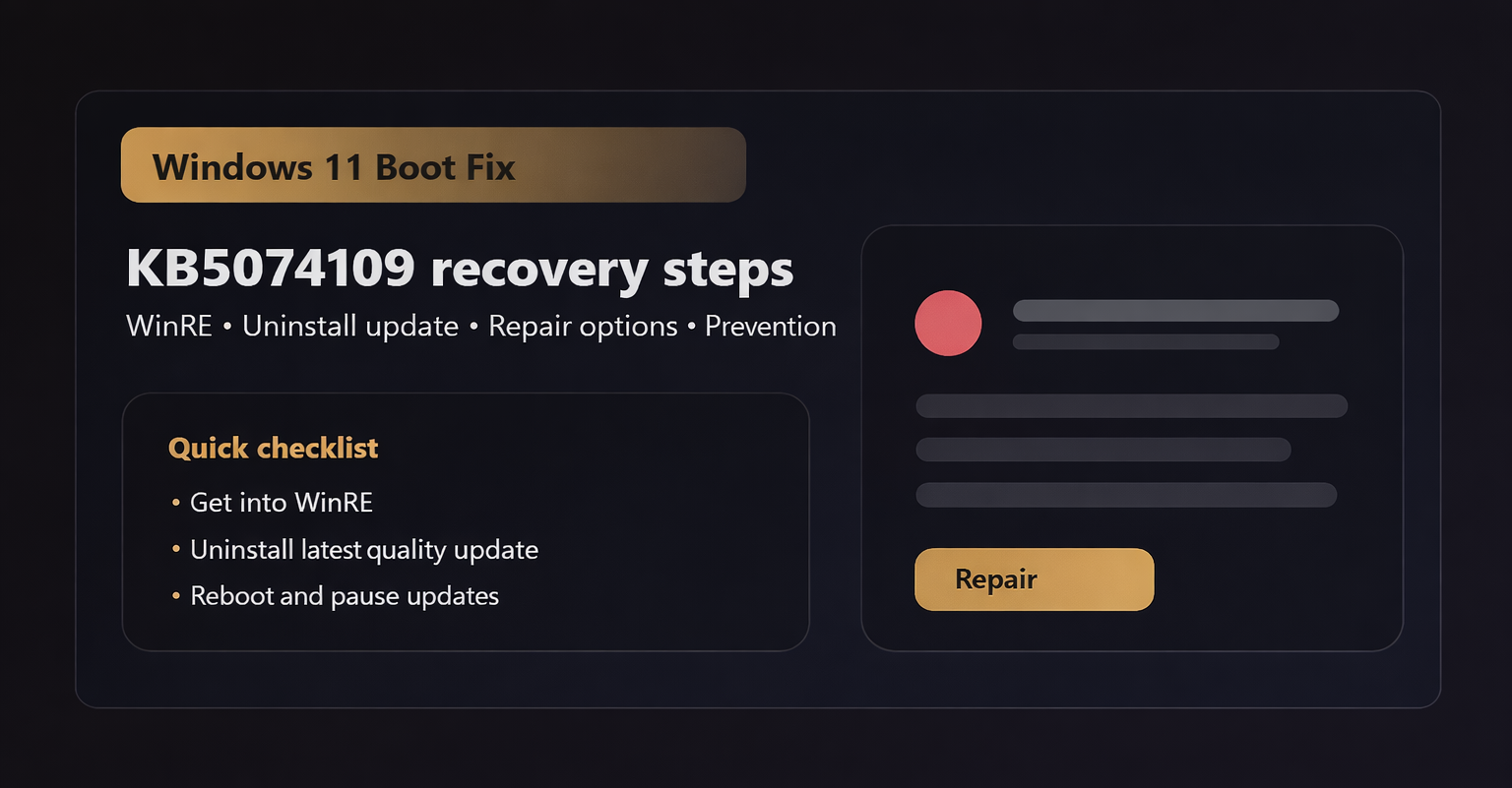
Experiencing a black screen or boot failure after the January 2026 Windows 11 update? You’re not alone—many users have reported problems linked to the KB5074109 patch. The good news: most affected PCs can be restored without losing your files.
This guide covers the exact symptoms, explains why the KB5074109 update can cause boot issues, and walks you through proven recovery steps. Whether you’re a tech-savvy user or just want your PC working again, you’ll find clear, safe solutions below.
Quick note: KB numbers can vary by device, region, and channel. If your PC broke right after the January 2026 update cycle, the recovery steps below still apply—even if your update history shows a different KB.
What the Problem Looks Like: Symptoms to Watch For
Boot failures after a Windows update can show up in a few predictable ways. If your issues began right after installing the January 2026 quality update, these symptoms are the strongest “yes, this is probably update-related” signals:
- Black screen after update (sometimes with cursor, sometimes totally blank).
- Boot loop: Windows logo → restart → Windows logo → restart.
- Automatic Repair loop: “Preparing Automatic Repair” but never reaches desktop.
- BSOD during boot (often quickly disappears).
- Failed restarts or the PC only boots every few tries.
- Hardware instability right after boot (freezes, driver failures, network/modem drivers missing).
Why This Happened
It’s rarely just “one bad file.” A cumulative Windows update can touch several components that are critical during startup: boot-time drivers, kernel security changes, storage stack updates, and compatibility shims. If any of those changes collide with your hardware, firmware, or an older driver, Windows can fail early in the boot process.
In plain terms: a small compatibility mismatch can become a boot blocker. Common patterns include storage controller/RAID drivers, GPU/graphics initialization changes, Secure Boot / code integrity checks, and third-party security software that loads early. Even if KB5074109 isn’t the root cause on every PC, uninstalling the most recent quality update is often the fastest “restore bootability” move.
For current status updates, Microsoft typically posts known issues in Windows release notes / release health pages. If you manage multiple PCs, check the official Windows release health dashboard: https://learn.microsoft.com/windows/release-health/
Quick Checklist — Before You Start
- If you can reach the sign-in screen, back up important files first (external drive or cloud).
- Know your BitLocker situation: if BitLocker is enabled, you may need the recovery key.
- Have a second device to read steps and create a USB if needed.
- Plan to try Fix A (WinRE) first; it’s the least invasive.
- Don’t keep power-cycling endlessly—if the disk is failing, it can make recovery harder.
Windows 11 KB5074109 Fix A — Uninstall the Update Using Windows Recovery Environment (WinRE)
WinRE is Windows’ built-in recovery menu. When the PC can’t boot normally, WinRE lets you uninstall recent updates, run Startup Repair, open Command Prompt, or restore the system.
Step 1: Force Windows into WinRE
If Windows won’t boot, you can usually trigger WinRE with a controlled “failed boot” pattern:
- Turn the PC on and wait for the Windows logo or spinning dots.
- Hold the power button for ~10 seconds to turn it off.
- Repeat this 2–3 times. On the next boot you should see Preparing Automatic Repair → Advanced options.
Screenshot placeholder: “Windows 11 Automatic Repair screen in WinRE” (use your own screenshot).
Step 2: Uninstall the latest quality update
In WinRE, follow the exact menus below:
- Select Troubleshoot.
- Select Advanced options.
- Select Uninstall Updates.
- Choose Uninstall latest quality update.
- This is the most likely path for KB5074109 / January 2026 cumulative patch issues.
- If the issue started after a feature update (less common), choose Uninstall latest feature update instead.
- Confirm prompts and wait for the uninstall to complete.
Screenshot placeholder: “Troubleshoot → Advanced options → Uninstall Updates (quality update)”.
Step 3: Reboot and verify
After uninstalling, pick Continue (or restart) and see if Windows reaches the desktop.
- If it boots: pause updates (see prevention section) and check for driver updates.
- If it still doesn’t boot: proceed to Fix B or the advanced recovery options below.
If “Uninstall latest quality update” fails (common fixes)
- BitLocker prompt: You may need to enter your BitLocker recovery key to proceed.
- Not enough free space: If you can access Safe Mode later, free up space and retry.
- Rollback fails or errors out: Use installation media (Fix B), then try again from WinRE on the USB.
Optional: confirm the update from inside WinRE (advanced)
If you’re troubleshooting for an office/family member and need to verify what was installed, WinRE’s Command Prompt can list packages on the offline Windows image. This is optional—skip it if you’re not comfortable with command-line tools.
- WinRE: Troubleshoot → Advanced options → Command Prompt.
- Find the Windows drive letter (it’s not always C: in WinRE). Try:
dir C:\Windows dir D:\Windows dir E:\Windows - Once you find the correct drive, list packages:
dism /image:C:\ /get-packages /format:table
If you do use DISM here, be careful: removing the wrong package can make recovery harder. The menu-based “Uninstall latest quality update” is safer for most users.
Fix B — Use Windows Installation Media to Repair or Uninstall
If WinRE won’t load or the uninstall option keeps failing, a Windows 11 installation USB gives you a cleaner recovery environment. This often works on systems stuck in loops.
Step 1: Create a bootable Windows 11 USB
- On a working PC, plug in an empty USB drive (8GB+).
- Download the official Windows 11 installation media from Microsoft: https://www.microsoft.com/software-download/windows11
- Run the Media Creation Tool and create the USB.
Screenshot placeholder: “Bootable USB drive for Windows installation media”.
Step 2: Boot from USB and open Repair options
- Insert the USB into the broken PC.
- Boot to the USB (you may need to press a boot menu key like F12, Esc, or F9 depending on the manufacturer).
- On the Windows Setup screen, select Repair your computer (do not click Install).
- Go to Troubleshoot → Advanced options → Uninstall Updates.
- Choose Uninstall latest quality update and confirm.
If You Still Can’t Boot — Advanced Recovery Options
If uninstalling the update doesn’t restore boot, you still have several non-destructive recovery tools. Try them in this order (least risky first):
1) Startup Repair
In WinRE: Troubleshoot → Advanced options → Startup Repair. This can repair boot configuration problems without touching files.
2) System Restore (if enabled)
In WinRE: Troubleshoot → Advanced options → System Restore. Pick a restore point from before the update.
3) Safe Mode (to uninstall drivers or security tools)
In WinRE: Troubleshoot → Advanced options → Startup Settings → Restart. Then press 4 for Safe Mode or 5 for Safe Mode with Networking.
In Safe Mode, remove recently installed drivers or third-party antivirus that might be blocking boot, then reboot.
4) Command Prompt (advanced): check and repair system files
If Windows boots but is unstable, or if you can access Command Prompt in WinRE, these tools can help:
- Repair the Windows image with DISM (full guide): Repair Windows 10/11 with Three DISM Commands
- Run System File Checker:
sfc /scannow(from an elevated prompt once you can boot)
Tip: If your PC won’t boot at all, focus on update uninstall + Startup Repair first. DISM/SFC are best once you can boot or when you’re comfortable targeting the offline Windows partition.
When to consult a pro
- Repeated clicking noises, SMART warnings, or a drive that disappears in BIOS/UEFI.
- BitLocker recovery key is unavailable and business data is on the device.
- Blue screens persist even after uninstalling updates and restoring.
Preventing Future Problems
Once you regain access, the goal is simple: avoid reinstalling the same problematic patch immediately and reduce the chance of update-related boot blockers.
For home users
- Pause updates for 1–2 weeks: Settings → Windows Update → Pause updates.
- Keep at least 15–20GB free space before installing cumulative updates.
- Update critical drivers from the PC vendor (chipset, storage, graphics) before installing big patches.
- Use a metered connection if you need to delay downloads while you wait for a fixed release.
For IT admins
- Use ring-based deployments (pilot group → broad rollout).
- Hold/approve updates via WSUS / Intune / Windows Update for Business with deferral policies.
- Track failures with Event Logs and deployment reports; pause rollout if boot issues spike.
- Maintain a recovery playbook (WinRE + installation media + BitLocker key access).
If you’re using Windows Update for Business, Microsoft’s docs on managing update rings and deferrals are a good starting point: https://learn.microsoft.com/windows/deployment/update/waas-manage-updates-wufb
For Legacy Hardware Users: What to Do About Removed Drivers
Some users notice missing drivers (especially older modem/network adapters) after a major patch cycle. Even if KB5074109 isn’t directly “removing drivers,” updates can tighten compatibility requirements or replace older drivers.
- Install the latest vendor driver (from the manufacturer support page) rather than relying on Windows Update.
- If the device is discontinued, consider a supported USB adapter or a modern replacement.
- For specialized workflows, test updates on a spare machine before patching the production PC.
If you need Safe Mode to recover a driver-related boot issue, you may also find this useful: Disable Driver Signature Enforcement in Windows 11 (Advanced Startup).
Image Guidance (Non-Copyright / Free Use)
For a high-trust tutorial, use your own screenshots for WinRE menus. For banners and supporting visuals, choose permissive-license images from reputable sources and always verify the license on the image page.
- Unsplash (commercial use): search “computer repair boot”, “bootable usb”, “laptop troubleshooting”.
- Pexels (commercial use): search “computer repair”, “black screen laptop”.
- Pixabay (permissive license): search “recovery”, “warning computer”.
- Wikimedia Commons (Public Domain / CC): filter for public domain or CC0/CC BY and follow attribution terms.
Recommended sizes: social preview 1200×628; inline tutorial images 800–1200px wide. Use descriptive alt text such as “Windows 11 automatic repair screen in WinRE”.
FAQ
How do I tell if KB5074109 is installed?
Open Settings → Windows Update → View update history. Look for KB5074109 under Quality updates.
Can I uninstall the update without losing files?
Usually yes. Uninstalling a quality update removes the patch, not your personal documents. Still, back up important data whenever possible.
Will Microsoft re-release a fixed update?
Microsoft often releases revised patches or out-of-band fixes when an update causes widespread issues. Pause updates until a patched release is confirmed and widely reported as stable.
What if WinRE asks for a BitLocker recovery key?
That’s normal on encrypted devices. Use your organization’s key escrow process, or for personal devices check the Microsoft account device recovery key page.
What should I do after my PC boots again?
Pause updates, update critical drivers, and run a quick system health check. If you need a guided repair flow, see this DISM repair guide.
Conclusion & Next Steps
When a Windows 11 quality update triggers boot failures, the fastest path back to a working PC is usually: get into WinRE, uninstall the latest quality update, then pause updates until a fixed release is available. If WinRE won’t load, installation media gives you the same repair tools from a cleaner environment.
Subscribe for update alerts: we’ll post when Microsoft confirms the root cause and ships a corrected patch.
Quick Troubleshooting Checklist (Fast Version)
- Force WinRE (power on/off 2–3 times).
- Troubleshoot → Advanced options → Uninstall Updates → Uninstall latest quality update.
- If that fails: Startup Repair → System Restore → Safe Mode.
- If WinRE won’t load: boot Windows 11 USB → Repair your computer → Uninstall Updates.
- After boot: pause updates, update drivers, run DISM/SFC.
Helpful official links
- Download Windows 11 (installation media)
- Microsoft Support: Windows
- Windows release health (known issues)
Note: KB numbers and rollout details can vary by device and region. If your PC broke after the January 2026 update cycle, the recovery steps in this guide are still the right first moves.