Repair Windows 10/11 with Three DISM Commands
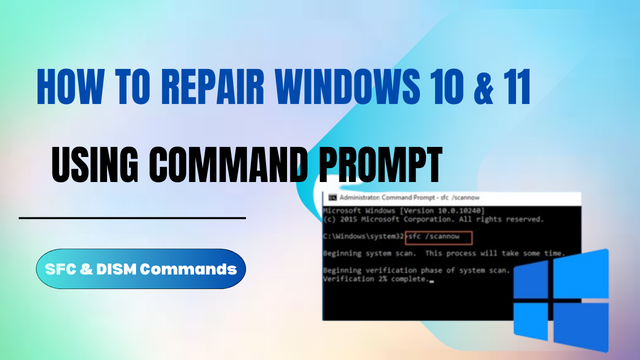
DISM (Deployment Image Servicing and Management) can quickly check and repair the Windows system image. Run these three commands in an elevated PowerShell or Command Prompt window to diagnose and fix corruption on Windows 10 or Windows 11.
When should you use DISM?
- Windows Update keeps failing or rolling back.
- System File Checker (SFC) cannot fix corruption.
- You see unexplained crashes, missing files, or UI glitches.
Before you start
- Open PowerShell or Command Prompt as Administrator.
- Keep a stable internet connection so
RestoreHealthcan download clean files. - Optional but recommended: create a restore point or backup first.
- Close heavy apps to avoid interruptions.
1) Quick check for flagged corruption
Fast status check to see if the image is flagged as corrupted.
dism /Online /Cleanup-Image /CheckHealthIf DISM reports no corruption, you can still run the deeper scan below to be sure.
2) Deep scan for corruption
Thorough scan that logs any issues without repairing yet.
dism /Online /Cleanup-Image /ScanHealthThis step can take several minutes. It only reports problems; it does not fix them.
3) Repair the system image
Downloads known-good files from Windows Update and repairs detected corruption.
dism /Online /Cleanup-Image /RestoreHealthIf you are offline or Windows Update is blocked, point DISM to a local ISO source instead:
Dism /Online /Cleanup-Image /RestoreHealth /Source:D:\sources\install.wim /LimitAccess
Common DISM errors and fixes
- 0x800f081f / source files could not be found: Mount a Windows ISO that matches your build
and use the
/Sourceoption. - 0x800f0906: Check internet access and make sure Windows Update is not blocked by policy.
- DISM stuck at 20% or 40%: Wait it out; this can take 10–30 minutes on slower disks.
Optional: run System File Checker
After DISM finishes, run SFC to repair any remaining system files:
sfc /scannowVerify the results
- Rerun
dism /Online /Cleanup-Image /CheckHealthto confirm no corruption is reported. - Check the DISM log for details:
C:\Windows\Logs\DISM\dism.log.
Best practices
- Run DISM before SFC when you suspect system image corruption.
- Keep your Windows ISO updated so the
/Sourcefiles match your version. - Restart after repairs to ensure system files reload correctly.
YouTube walkthrough
Wrap up
These three DISM commands let you quickly check, scan, and repair the Windows system image without reinstalling the OS. Keep them handy for routine maintenance or whenever Windows starts acting up.