Add “Take Ownership” to Windows 10/11 Context Menu
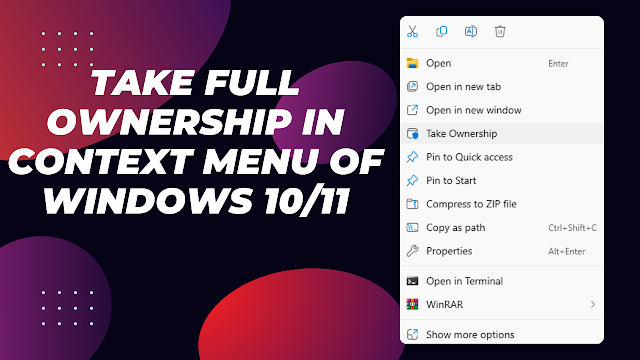
Need to unlock a protected file or folder? Adding a Take Ownership option to the right-click menu lets you quickly assume ownership and full control of files and folders on Windows 10 and Windows 11. Use the prebuilt registry files below to add (or remove) the menu entry in seconds.
Download the registry files
Choose the version you want. All links point to the Windows Tweaks Hub repo.

Step-by-step
1) Download the registry file you need
Pick one of the three downloads above and save it somewhere easy to find.
2) Merge it into the registry
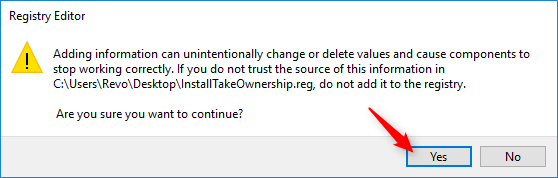
Double-click the .reg file. Approve the UAC prompt, then click Yes to confirm you want to add the information to the registry.
3) Confirm the merge
Click OK on the confirmation dialog.

4) Use the new context menu option
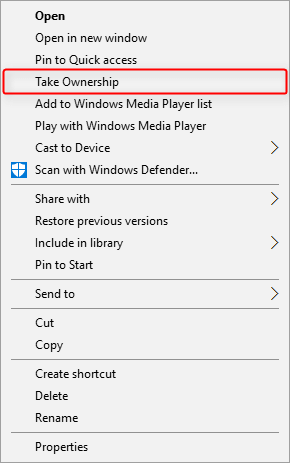
Right-click any folder (and most files) and you will see Take Ownership. Click it to take ownership and grant yourself full control. No reboot required.
Notes and safety
- Only run registry files you trust. You can open these
.regfiles in a text editor to review the changes. - The pause version shows a prompt before executing, so you can confirm the target.
- If you no longer need the option, run the Remove Take Ownership file to cleanly undo the change.
Video walkthrough
Wrap up
With these registry files, you can add or remove the Take Ownership option in a few clicks. Use it when you hit permissions roadblocks, then remove it if you prefer a cleaner menu.