Fix “There Was a Problem Resetting Your PC” in Windows 11 (6 Ways)
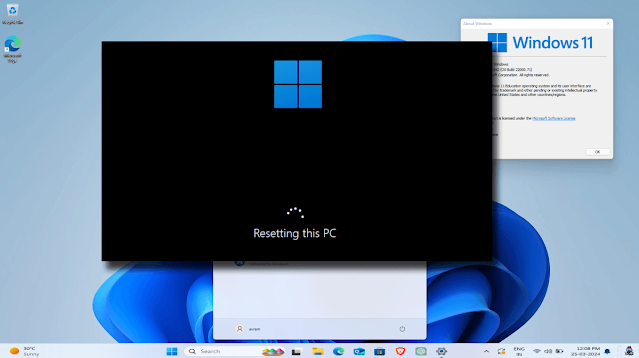
“Reset this PC” is like a digital time machine—but sometimes it loops. Here are 6 practical fixes to get it working again.
Why this error happens
- Corrupted system files or Windows image
- Damaged recovery environment (WinRE)
- Low free disk space or failing storage
- Third-party antivirus or disk encryption conflicts
Before you start
- Back up important files to an external drive or cloud storage.
- Disconnect unnecessary USB devices.
- Ensure at least 20 GB of free space on the system drive.
Solution 1: Run Startup Repair 🛠️
Windows 11 includes Startup Repair for common boot issues.
- Force-restart your PC three times to enter Advanced Startup.
- Select Advanced options → Troubleshoot → Advanced options.
- Click Startup Repair.
.png)
Tip: Startup Repair can automatically fix boot-related problems.
Solution 2: Try Command Prompt ⌨️
Run system checks to repair corrupted files.
- Open elevated Command Prompt.
- Run
sfc /scannow. - If needed, run
DISM /Online /Cleanup-Image /RestoreHealth.

Tip: Run Command Prompt as admin for full permissions.
Solution 3: Use a System Restore Point 🔄
- Press Win + R, type
sysdm.cpl, and press Enter. - Open the System Protection tab and choose System Restore.
- Select a restore point and follow the prompts.
Tip: Regular restore points save time when issues pop up.
Solution 4: Restore from System Image Backup 🔄
- Go to Settings → System → Recovery.
- Select Advanced startup → Troubleshoot → System Image Recovery.
- Choose your system image and complete the restore.
Tip: Keep backups updated for best results.
Solution 5: Recover from a Recovery Drive 📂
- Create a Recovery Drive from Start menu.
- Boot from the USB drive.
- Select Use a device and follow the prompts.
Tip: Store the drive safely so it is ready when needed.
Solution 6: Fresh Install Windows 🔄
- Create Windows 11 install media with the Media Creation Tool.
- Boot from the USB and follow setup.
- Backup important data before reinstalling.
If Reset still fails, one of the solutions above should restore functionality. Start with the least invasive methods and work up to a fresh install only if necessary.
Extra fix: Re-enable Windows Recovery Environment (WinRE)
If Reset fails immediately, WinRE might be disabled. Run the following in an elevated Command Prompt:
reagentc /info
reagentc /enable
Reboot and try Reset again.
FAQ
Will “Keep my files” erase apps?
Yes. It preserves personal files but removes installed applications. Back up installers or license keys first.
Is a clean install better than Reset?
A clean install is the most reliable but also the most time-consuming. Try repairs and WinRE fixes first.