Create Partitions on a Pen Drive (MiniTool Guide)
Partitioning a pen drive helps separate data, use different file systems, or organize storage. Here is a simple step-by-step guide using MiniTool Partition Wizard (Free).

Steps to Create a Partition on a Pen Drive Using MiniTool Partition Wizard
Step 1: Download and Install MiniTool Partition Wizard
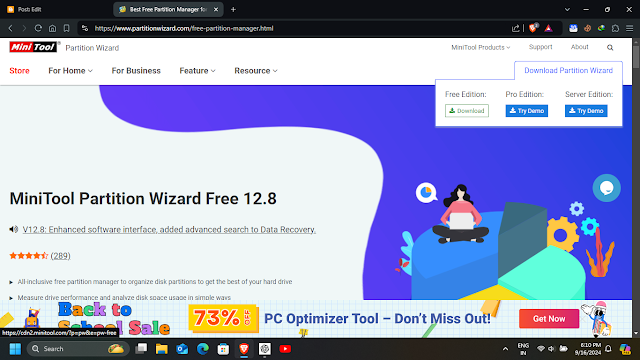
Download the free version from the official site and install it. (alert-success)
Direct Download: https://cdn2.minitool.com/?p=pw&e=pw-free
Step 2: Connect Your Pen Drive

Insert your pen drive and confirm it appears in “This PC.” (alert-success)
Step 3: Launch MiniTool Partition Wizard

Your pen drive should appear in the disk list. (alert-success)
Step 4: Select Your Pen Drive
Right-click the drive and choose Create Partition. If space is needed, delete or shrink an existing partition first. (alert-success)
Step 5: Create a New Partition
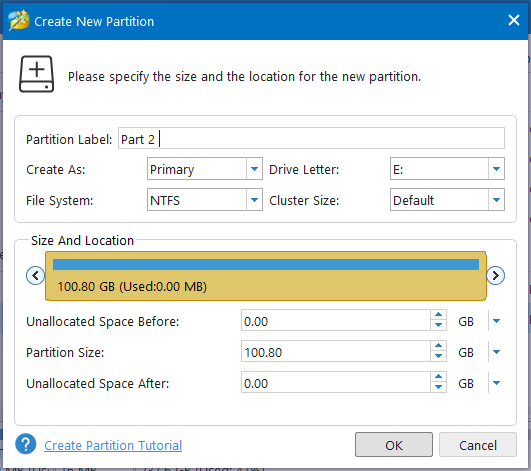
Choose the size and file system (NTFS/FAT32/exFAT). Assign a drive letter and click OK. (alert-success)
Split:

----------------------------OR----------------------------
1. Delete all partitions
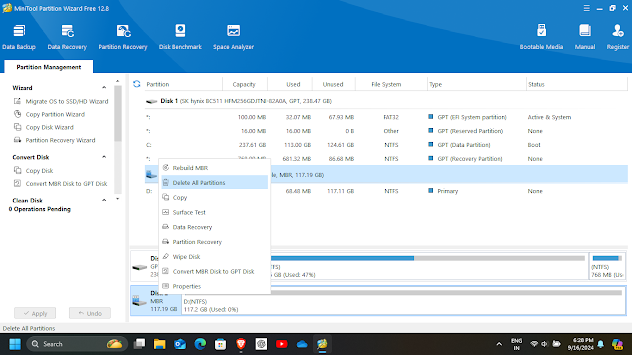
2. Create new partitions
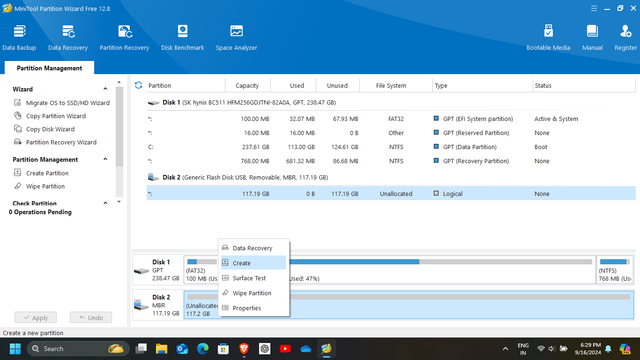
3. Partition 1
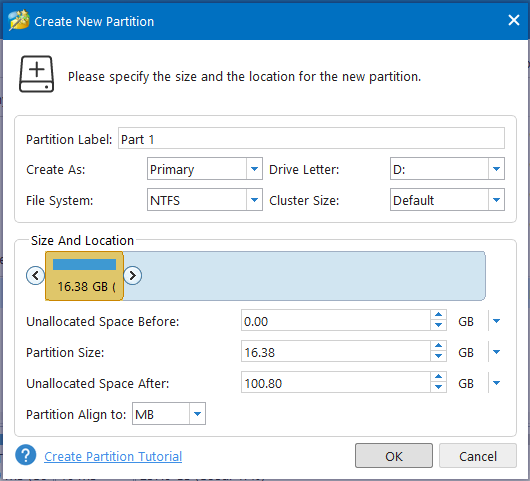
4. Partition 2
Step 6: Apply Changes

Click Apply in the top-left corner to finalize changes.
Task Complete

Other Tools to Create Partitions on a Pen Drive
1. AOMEI Partition Assistant — easy USB partitioning with a free edition.
2. EaseUS Partition Master — reliable partition manager with a free version.
3. Paragon Partition Manager — supports multiple file systems and devices.
Final
Creating partitions on a pen drive is straightforward with MiniTool Partition Wizard. Use it to manage files better or set up multiple file systems.