Run an External Drive OS as a VMware Workstation VM
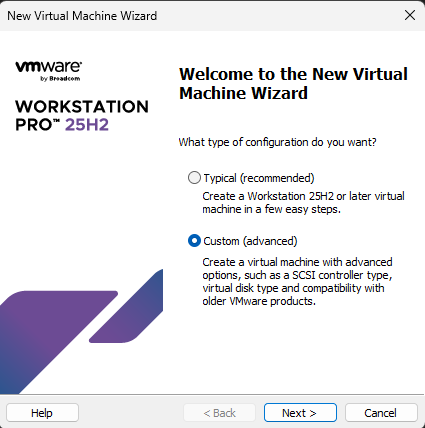
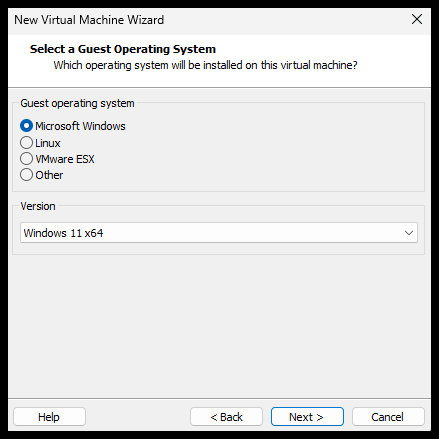
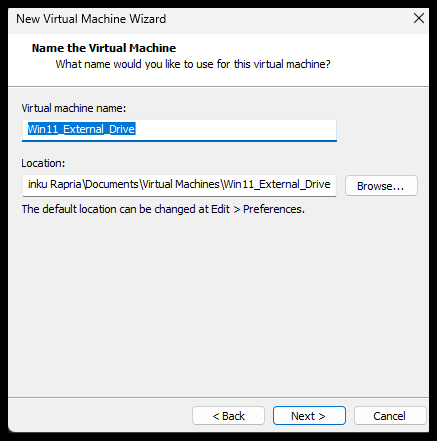
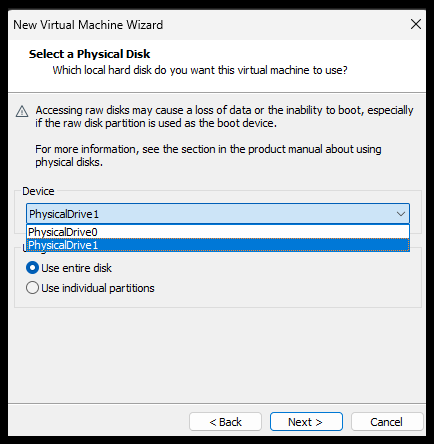
This concise walkthrough shows how to run an existing OS (on an external drive) inside VMware Workstation without changing the original installation. Images are shown as small thumbnails — click to open the full-size screenshot.
Why do this?
Virtualizing the external drive lets you boot the same system in a controlled VM environment while preserving the ability to boot the drive natively. It avoids cloning and minimizes risk to the original installation.
Prerequisites
- External drive with a working OS (Windows or Linux)
- VMware Workstation Pro (recommended) or Player
- Administrator privileges on the host
- USB 3.0 or faster connection for acceptable performance
High-level steps
- Identify the external disk number (Disk Management / PowerShell)
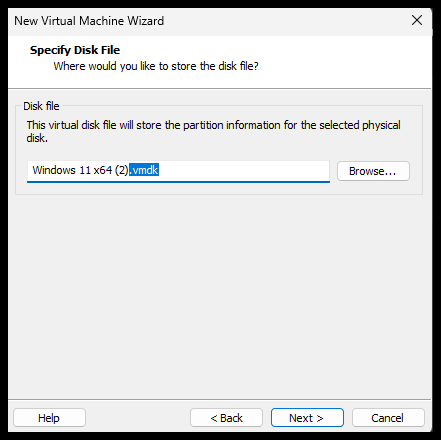
- Create a small .vmdk mapping file that points to the physical disk
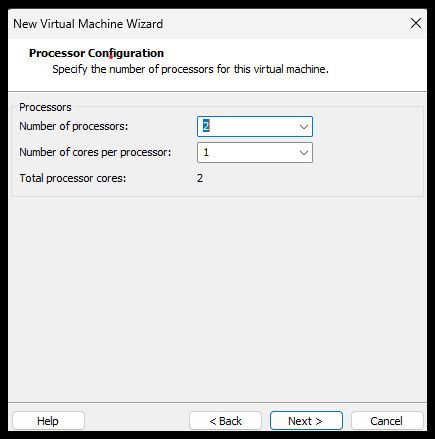
- Create a VM and attach the mapping .vmdk as the VM's disk
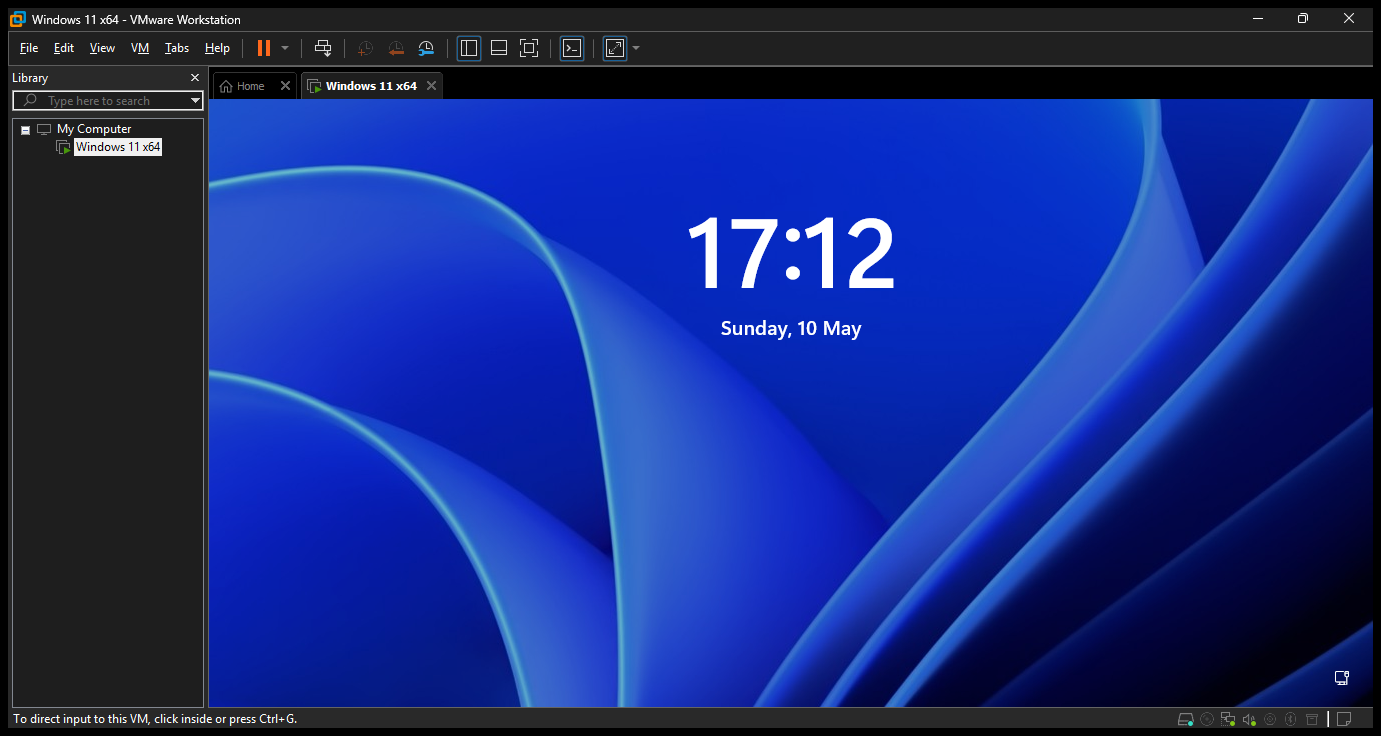
- Boot the VM, install VMware Tools, verify drivers and activation
PowerShell commands (Windows, run as Administrator)
Get-Disk | Select-Object Number, FriendlyName, Size

# create a VM folder and map the physical disk (replace PhysicalDrive2 with your disk number)
mkdir "C:\Users\%USERNAME%\Documents\Virtual Machines\External-OS-VM"
cd "C:\Users\%USERNAME%\Documents\Virtual Machines\External-OS-VM"
"C:\Program Files\VMware\VMware Workstation\vmware-vdiskmanager.exe" -r \\.\PhysicalDrive2 external-drive.vmdk
Screenshots (click thumbnails to open full-size)
Tips & precautions
- Do not mount the external disk on both the host and the VM at the same time — shut down one before using the other.
- Windows may require reactivation when hardware changes; have your license/key available.
- Install VMware Tools in the VM for drivers, better performance and clipboard integration.
- Back up the external drive before trying raw-disk access — better safe than sorry.
Troubleshooting
- VM won't boot: confirm the physical disk number and that the drive is connected.
- Slow performance: use an SSD and a faster interface (Thunderbolt/USB-C) if possible.
- Driver issues: install VMware Tools and update drivers in Device Manager.
If you want images to open inline (lightbox) instead of a new tab, I can add a small JavaScript lightbox and the necessary CSS — shall I add that?