Fix Error 0x80070520 on Windows 11 (Account Picture Issue)
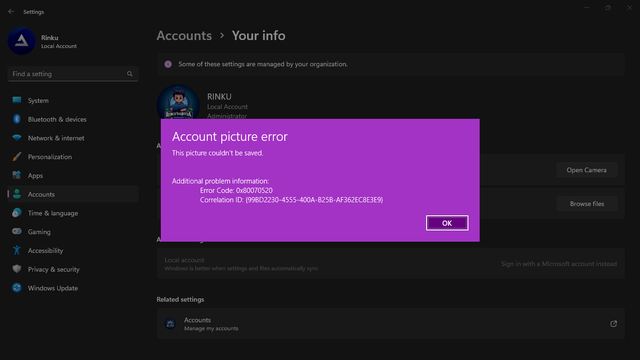
Windows 11 error 0x80070520 often appears when changing account pictures. Below are causes, quick fixes, and a PowerShell script workaround.
Understanding Error 0x80070520
This error can block profile customization and may signal permissions issues, file corruption, or software conflicts.
Common Causes
- Corrupted system files
- Permissions conflicts
- Third‑party security software
Troubleshooting Steps
- Restart your PC to clear temporary glitches.
- Update Windows via Settings → Windows Update.
- Run Windows Update Troubleshooter.
- Check user permissions or sign in with admin.
- Run SFC:
sfc /scannow. - Disable third‑party AV temporarily to test conflicts.
- Perform a clean boot using System Configuration.
- Use System Restore if the issue is recent.
Best Fix: PowerShell Script
Run the following two steps in an elevated PowerShell window.
Execution Policy
Set-ExecutionPolicy -Scope Process -ExecutionPolicy BypassThis allows scripts to run for the current session.
Main Script (save as a .ps1 file)
# Set the path to your new profile picture
$profilePicturePath = "C:\Users\Rinku\Logos\Rinku-Rapriya Logo512.jpg"

# Create the registry key if it doesn't exist
New-Item -Path "HKCU:\SOFTWARE\Microsoft\Windows\CurrentVersion" -Name "AccountPicture" -ErrorAction SilentlyContinue | Out-Null

# Set the registry key value for the new profile picture
Set-ItemProperty -Path "HKCU:\SOFTWARE\Microsoft\Windows\CurrentVersion\AccountPicture" -Name "AccountPicturePath" -Value $profilePicturePath

# Trigger Windows to refresh the user's profile picture
$signature = @'
[DllImport("user32.dll", SetLastError = true)]
public static extern bool SendMessageTimeout(
    IntPtr hWnd,
    uint Msg,
    UIntPtr wParam,
    IntPtr lParam,
    uint fuFlags,
    uint uTimeout,
    out UIntPtr lpdwResult
);
'@
$WinMsg = Add-Type -MemberDefinition $signature -Name WinMsg -Namespace Win32Functions -PassThru
$HWND_BROADCAST = [IntPtr]0xffff;
$WM_SETTINGCHANGE = 0x001A;
$SMTO_ABORTIFHUNG = 0x2;
$timeout = 5000;
$Result = [UIntPtr]::Zero;
$WinMsg::SendMessageTimeout($HWND_BROADCAST, $WM_SETTINGCHANGE, [UIntPtr]::Zero, [IntPtr]::Zero, $SMTO_ABORTIFHUNG, $timeout, [ref]$Result)

# Pause the script to prevent the window from closing immediately
Read-Host "Press Enter to exit"
Replace C:\Users\Rinku\Logos\Rinku-Rapriya Logo512.jpg with your actual image path. Run
PowerShell as Administrator and be cautious when editing the registry.
Conclusion
Error 0x80070520 can be annoying, but the steps above typically resolve it. If it persists, consider contacting Microsoft support.