Enable Hibernate Mode in Windows 10/11 (3 Methods)
As we can see, hibernation protects data better, uses less power, and resumes faster. Below are three reliable ways to enable Hibernate mode on Windows 10/11.
Hibernate vs Sleep (quick comparison)
- Sleep keeps your session in RAM and uses a small amount of power.
- Hibernate saves the session to disk (hiberfil.sys) and uses almost no power.
- Hybrid Sleep is a mix of both, available on some systems.
Check if Hibernate is already available
Open an elevated Command Prompt and run:
powercfg /aThis shows which sleep states are available and whether Hibernate is currently disabled.
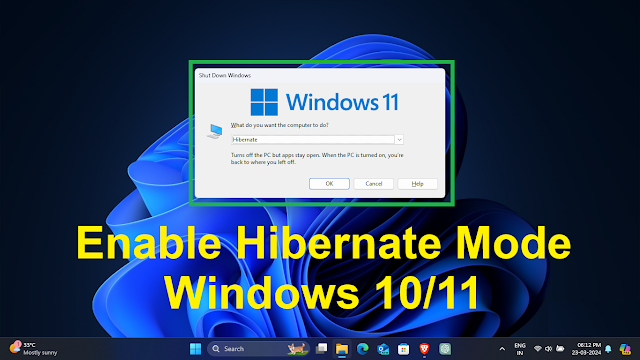
Method 1: Control Panel (Recommended) 🛠️
This is the most common way Windows users enable hibernation.
Step 1
Open Start and search for Control Panel.
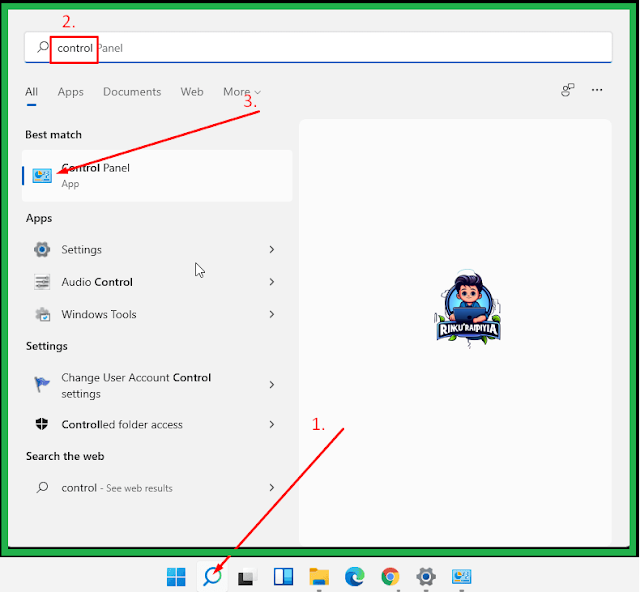
Step 2
Go to System and Security → Power Options.
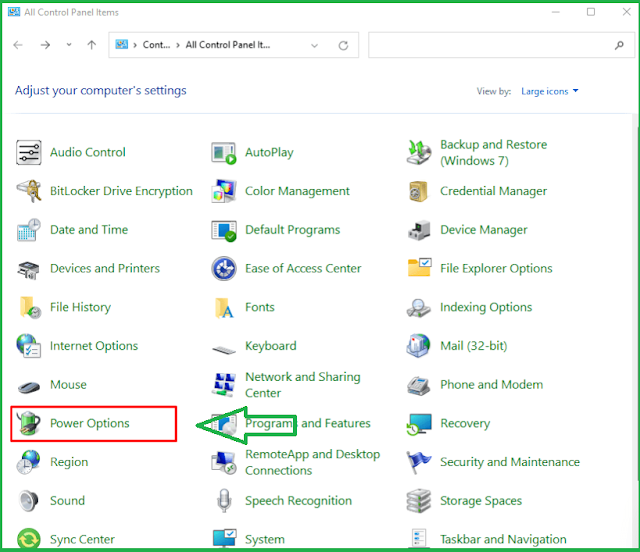
Step 3
Select Choose what the power button does.
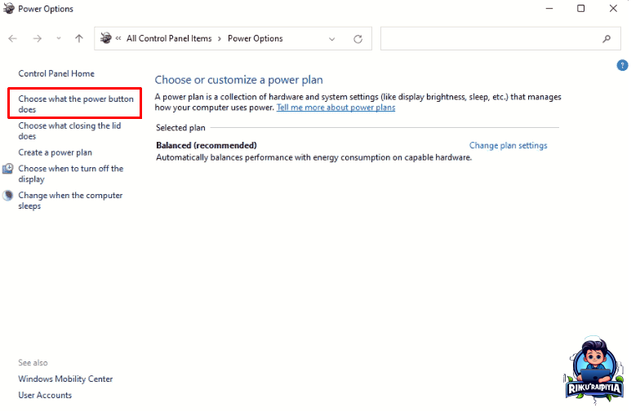
Step 4
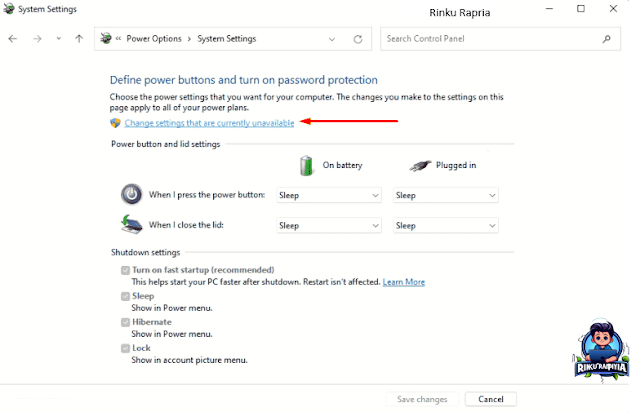
Click Change settings that are currently unavailable.
Step 5
Check Hibernate under Shutdown settings, then click Save changes.

Method 2: Command Prompt ⌨️
Enable hibernate with a single command.
Step 1
Open Command Prompt as Administrator.

Step 2
Run this command:
powercfg.exe /hibernate on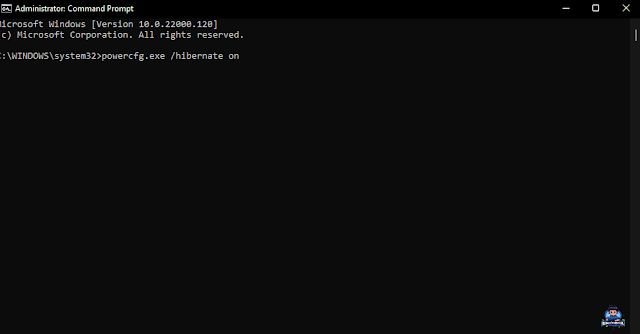
Method 3: Registry Editor 🖥️
Use this method if the first two are unavailable.
Step 1
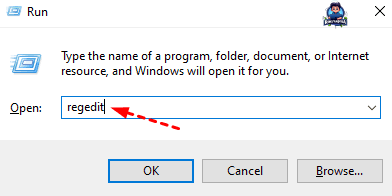
Press Win + R, type regedit, and press Enter.
Step 2
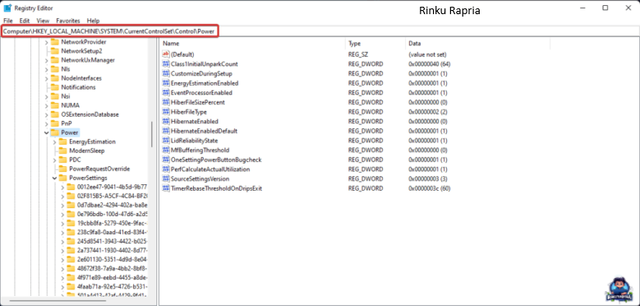
Navigate to HKEY_LOCAL_MACHINE\SYSTEM\CurrentControlSet\Control\Power.
Step 3
Double-click HibernateEnabledDefault and set the value to 1, then click OK.

Now you are all set to manage Hibernate Mode in Windows 10/11 efficiently.
Common issues and fixes
- Hibernate missing from the Power menu: Run
powercfg.exe /hibernate onand enable it in Power Options. - Low disk space: Hibernate uses disk space. You can reduce file size with
powercfg /h /type reduced. - Fast Startup conflicts: Disable Fast Startup temporarily if Hibernate still doesn’t appear.
How to disable Hibernate (optional)
If you no longer need Hibernate and want to remove the hiberfil.sys file:
powercfg.exe /hibernate off